

To enter pairing mode:
 in upper-left, select the desired product, then tap the Source button.
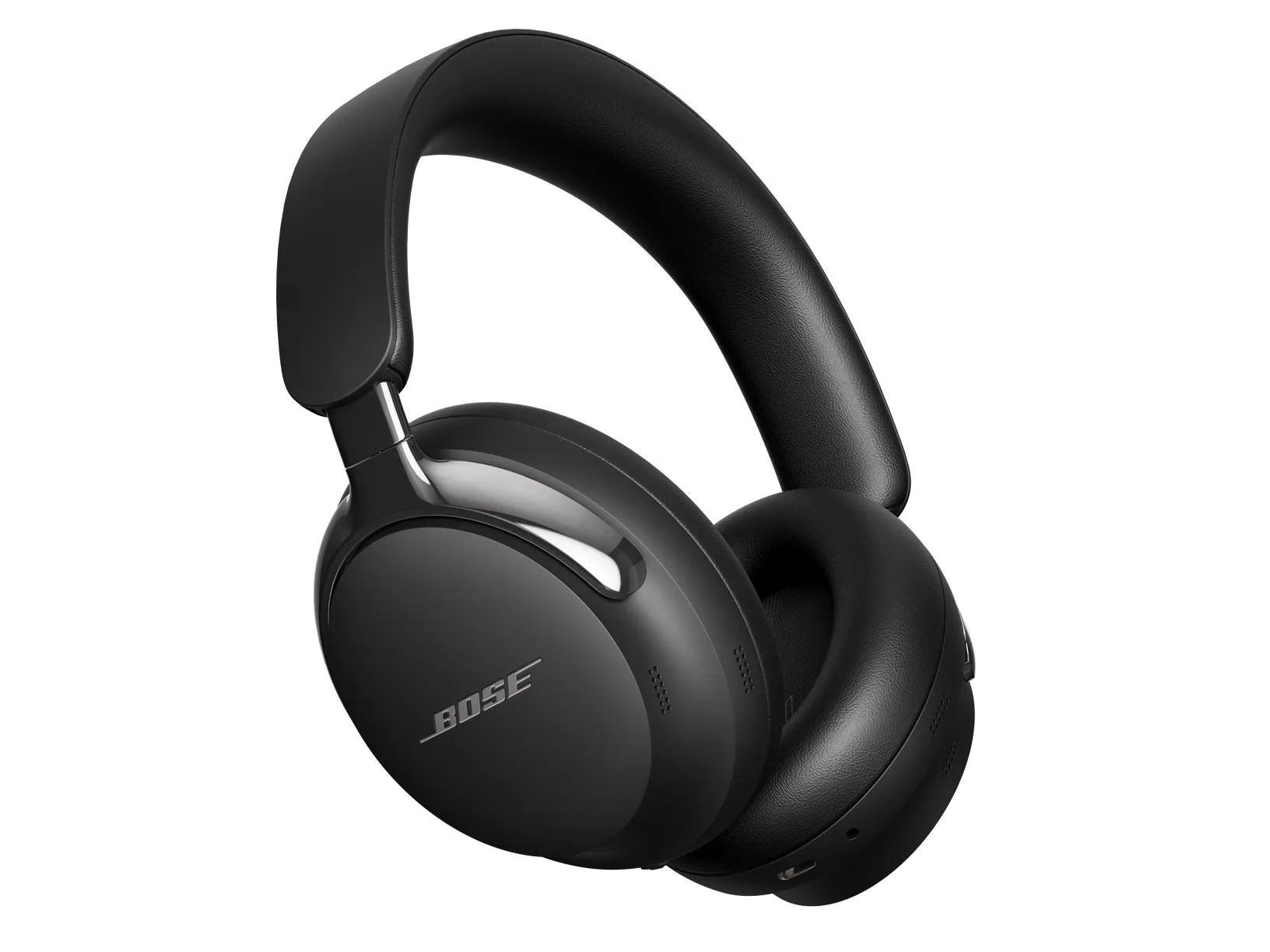
With the headphones on, press and hold the Bluetooth/Power button.
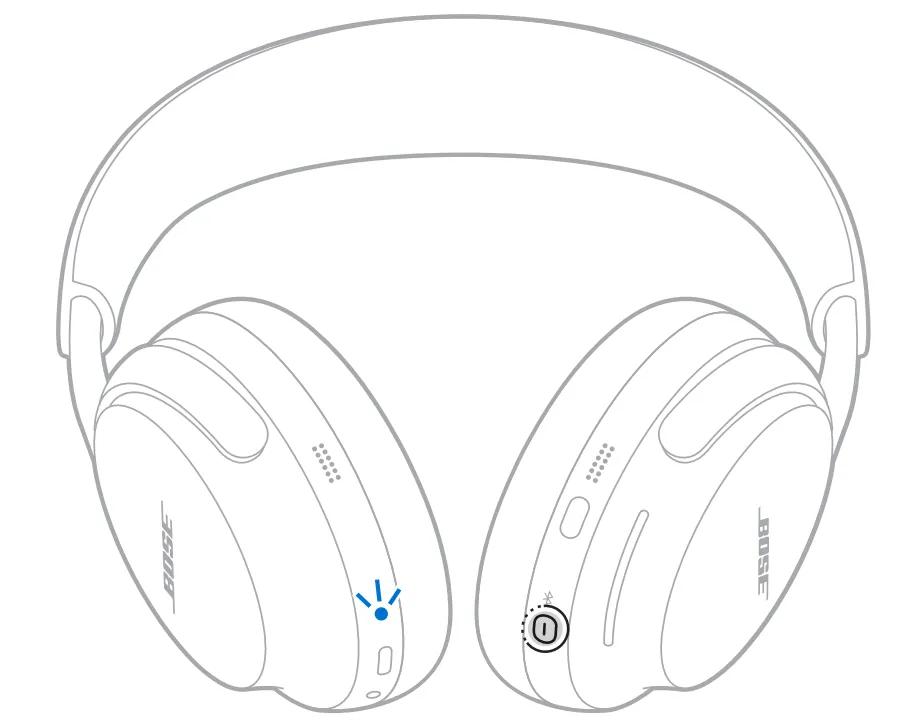
Note: Prior to February 2026, the headphones had different prompts. If you still hear prompts like "Ready to Connect" and "Connected to <device name>, please update your headphones first.
On your computer, select the Start button
In the left pane, select Bluetooth & devices
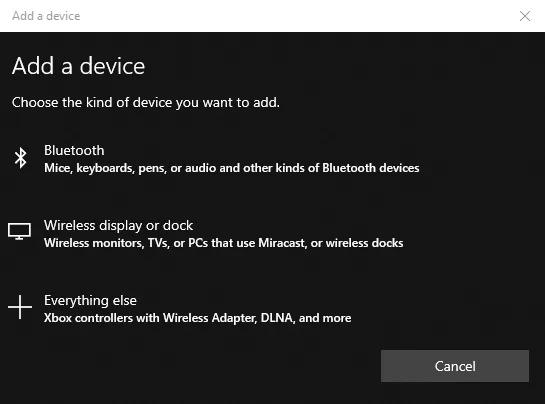
Select Add device
When prompted to select a device type, select Bluetooth. Windows will then search for available Bluetooth devices
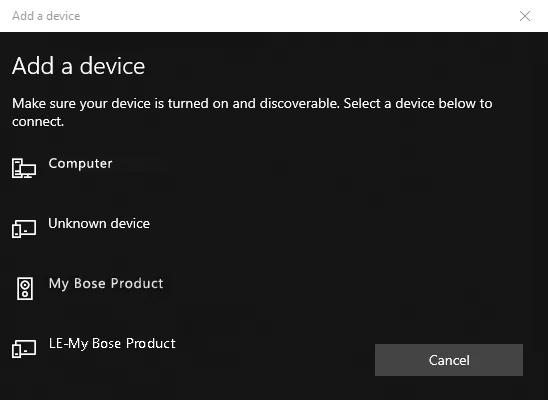
Select your Bose product from the list of available devices
Tip: If your product appears twice, select the one with the headphones or speaker icon next to it. Do not select the one with LE- in the name. If you already did, just start over and select the other option
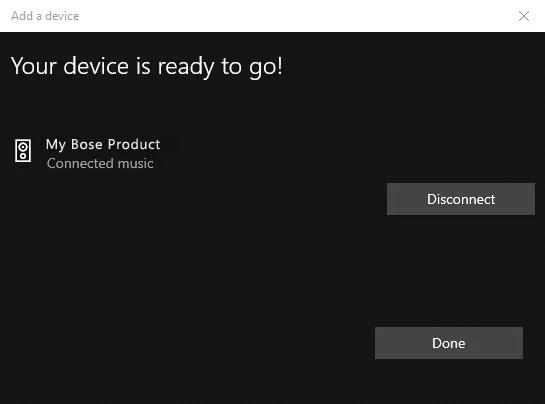
Click Done.
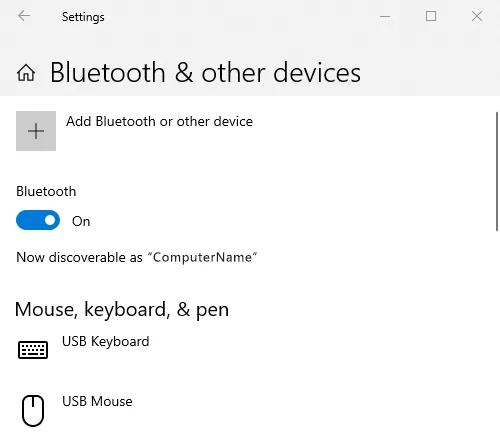
On your computer, go to the Bluetooth® settings
Tip: To get there, you can click the Windows button in the lower-left, begin typing Bluetooth, then select Bluetooth and other device settings
If Bluetooth is off, switch the toggle to On
Select Add Bluetooth or other device
Select Bluetooth
Select your Bose product from the list of available devices
Tip: If your product appears twice, select the one with the headphones or speaker icon next to it. Do not select the one with LE- in the name. If you already did, just start over and select the other option
Click Done.
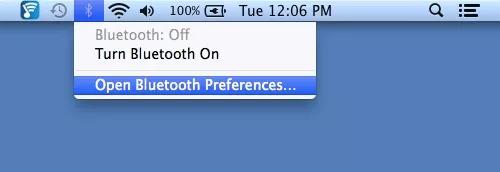
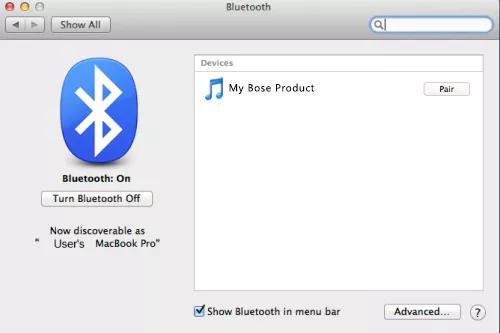
From your desktop, click the Bluetooth® icon in the menu bar in the upper-right
Click Open Bluetooth Preferences…
If Bluetooth shows it is off, click Turn Bluetooth On
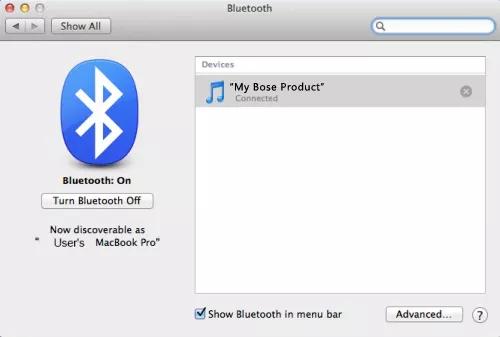
From the list of available Bluetooth devices on the right, click Pair next to your Bose product and wait for the computer to confirm it's connected.
5.1 Spatial Audio is a new feature that is only available on certain compatible Android devices. Because support is device-dependent, not all Android devices can use this feature.
Spatial Audio can typically be enabled through the device's native Bluetooth settings. To do this, select the Bose product from the list of connected Bluetooth devices and open its settings. On some devices, you can also enable the feature by searching the device settings for terms such as "Spatial Audio" or "Dolby Audio."
Once enabled, playback requires content with a true 5.1-channel audio track. Some streaming and movie apps provide compatible content. The headset automatically processes the 5.1-channel audio from the source to create a spatial listening experience.
This experience is similar to Bose Immersive Audio when head tracking is enabled, although the spatial effect is derived directly from the source's 5.1-channel audio.
For an example of how to enable and use Spatial Audio on Google Pixel devices, see: https://support.google.com/pixelphone/answer/12967594?hl=en.
For other devices, refer to your device manufacturer's documentation

